Clipper Approval KitGet the kit
For pay-per-view clippers

Stop losing clips to avoidable rejections.

A tracker, a checklist and a 33-page rules guide. Log every clip, catch the common mistakes before you submit, and see what your time is really worth.

One-time payment · Instant download on Whop · 14-day refund, no reason needed

Clip, the kit's stick figure, waving next to a phone marked approved and a green APPROVED stamp

Three checks to run before every submission

  1. 1

    Linked and verified

    Post from an account you linked and verified in Content Rewards.

  2. 2

    Under 30 minutes

    Submit the link within 30 minutes of posting.

  3. 3

    One post, one campaign

    Each post goes into one campaign, once.

From the Content Rewards help centre, checked 23 Nov 2026. Rules change, so always confirm on the live campaign page. The full checklist is in the guide.

What's inside

Two files you keep. Use them for every campaign.

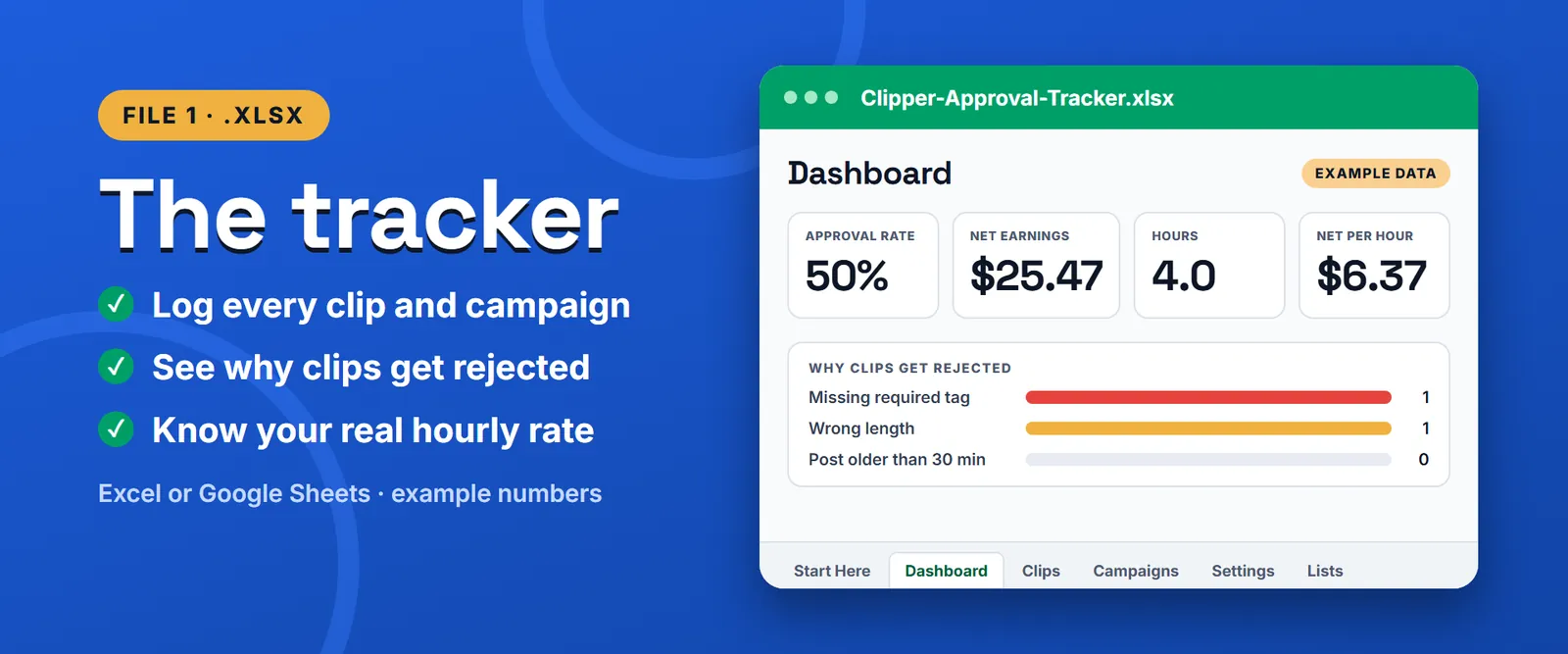
The tracker's dashboard with example numbers: 50% approval rate, $25.47 net earnings, 4.0 hours, $6.37 per hour

The tracker .xlsx

  • Log every clip: campaign, platform, views, status, rejection reason and minutes spent.
  • Estimated earnings that respect each campaign's rate, minimum payout, cap and platform fee.
  • A dashboard with your approval rate, net earnings and effective dollars per hour.
  • Opens in Excel and LibreOffice. You can also import it into Google Sheets.

The screenshot uses made-up example numbers.

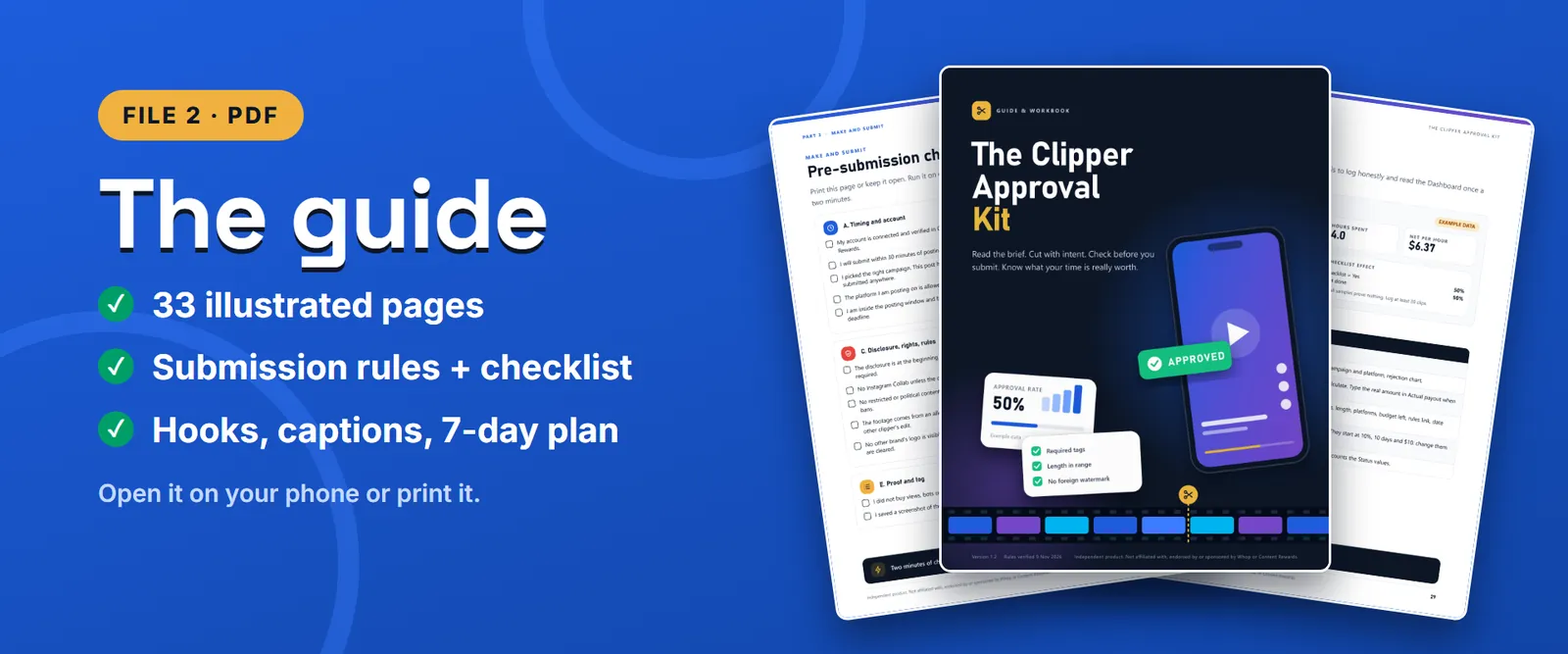
Pages of the illustrated guide fanned out, with the cover on top

The guide PDF · 33 pages

  • How pay-per-view clipping works, the four campaign types, fees and timing.
  • The submission rules that cause refusals, and what to do about Pending, flags and appeals.
  • A printable pre-submission checklist and a rejection post-mortem worksheet.
  • 30 hook templates, 10 caption templates and a 7-day plan.

Set up in 10 minutes

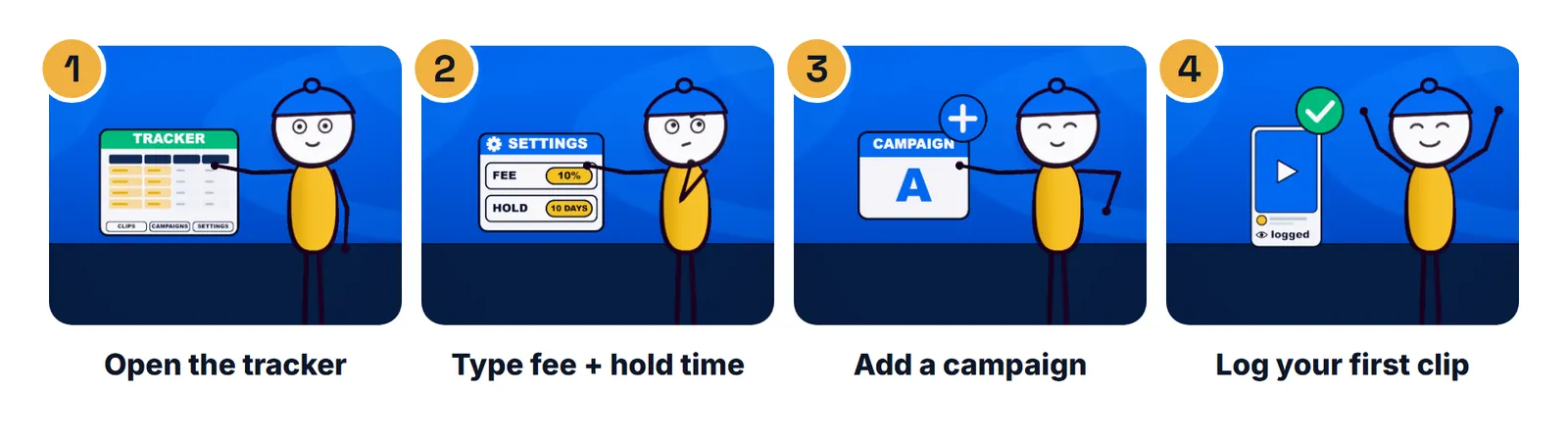
Four panels with Clip: open the tracker, type the fee and hold time, add a campaign, log your first clip
  1. Open the tracker in Excel, or import it into Google Sheets.
  2. Settings tab: type the fee and hold time from the campaign's current terms.
  3. Campaigns tab: add your first campaign.
  4. Clips tab: log your first clip. Read the dashboard once a week.

Who it's for

It's for you if

  • You want a clear process for pay-per-view clipping campaigns.
  • Your clips keep getting rejected and you don't know why.
  • You want to know what your time is really worth.

It's not for you if

  • You want a promise of income. There isn't one here.
  • You want to buy views, run fake accounts or bend a campaign's rules.

Questions

Does this guarantee my clips get approved?

No. The brand or creator behind each campaign decides. The kit helps you avoid common, avoidable mistakes and shows you where your time goes. It contains no income promises.

Are the fee and timing numbers up to date?

They match the Content Rewards Creator Terms updated 4 Oct 2026, checked on 9 Nov 2026. Fees and rules change, so the tracker's Settings are editable and the guide tells you to confirm on the live campaign page.

Do I need Excel?

No. The tracker is an .xlsx file. It opens in Microsoft Excel and LibreOffice, and you can import it into Google Sheets (File > Import).

Does it work outside Content Rewards?

Yes, for any pay-per-view clipping campaign with a rate and rules. You type the campaign's numbers into the tracker yourself.

How do I get the files?

Checkout and delivery happen on Whop. Right after you pay, open the kit's Content page on Whop and download both files.

Can I get a refund?

Yes, within 14 days of purchase, no reason needed. Send a message from the kit's Support section on Whop.

Is this affiliated with Whop or Content Rewards?

No. It is an independent product, not affiliated with, endorsed by or sponsored by Whop or Content Rewards.

Check it before you submit it.

Tracker + guide + checklist. $15, one time.

Get the kit · $15

Instant download on Whop · 14-day refund, no reason needed